Capell home
Live demo

Follow one page from edit to recovery

The hosted install is a read-only product preview with no signup. Saving and restoring are disabled, so you can explore the real editor, preview, Page History, and public delivery boundaries without changing demo content. Demo data resets hourly.

Real Filament admin Page preview workflow Clean public HTML

See how Capell connects page content, publishing, the site your team builds, and packages you can review before installing.

Watch on YouTube

Try the change that matters to you

Follow a practical editing, publishing or recovery task instead of browsing screens at random.

Use the guided paths below to inspect the workflow closest to your requirement. An editor can follow a page update; an owner can examine history and recovery; a developer can inspect composition and the public result. The demo is a configured example, so check package scope and permissions before applying the same expectation to your application.

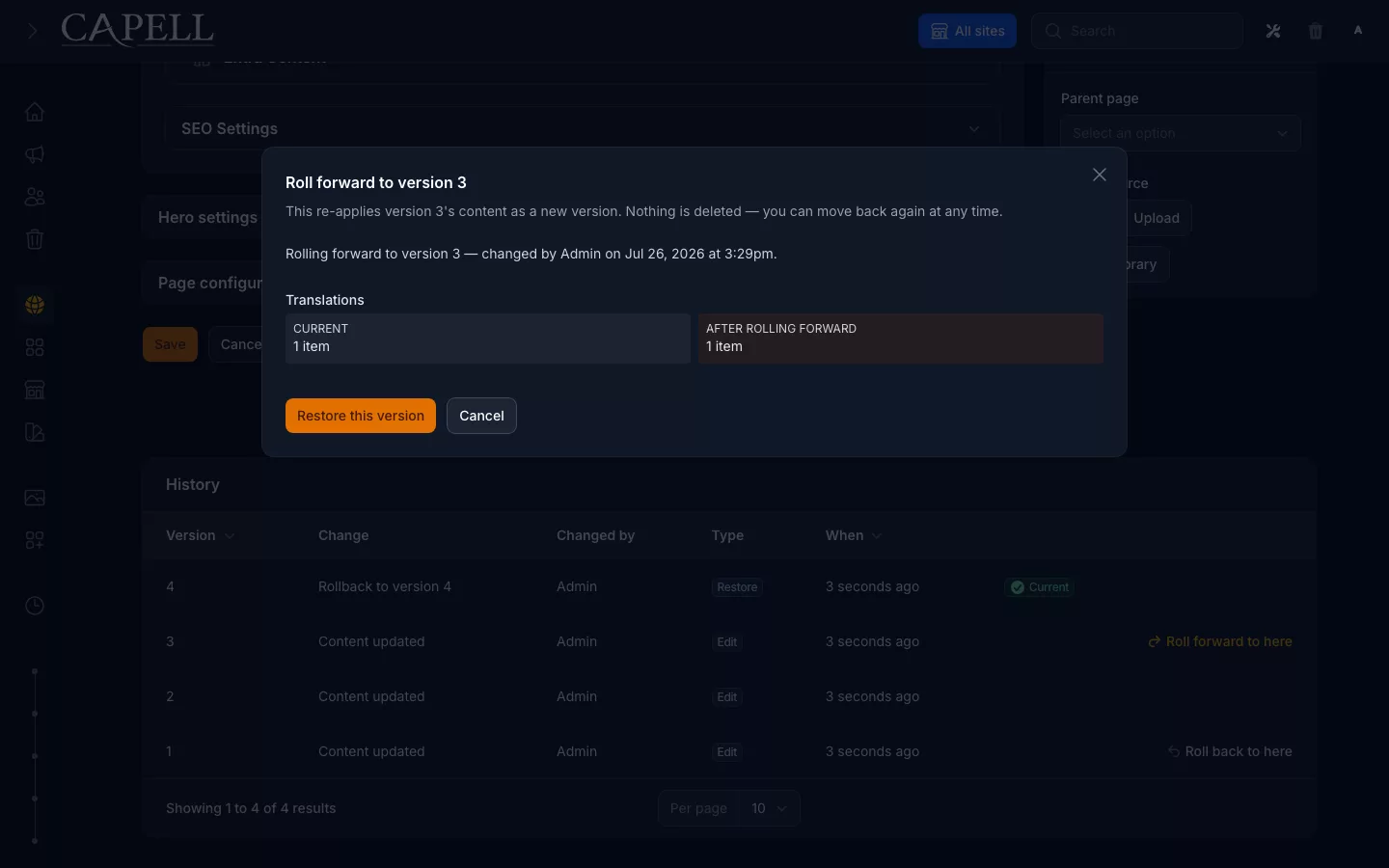
Capell Page history comparison and recovery preview
The Foundation demonstration lets you inspect a real page change and its recovery path.

The demo is public and requires no signup. Follow the Filament, preview and public HTML path first, then use the three representative environments for broader evaluation. Admin access is read-only and the environment resets hourly.

Guided demo

Two real Capell workflows are ready to inspect

The public demo is read-only. It lets you inspect the real screens and pre-seeded states; install Foundation to perform the edit and recovery yourself.

The shared demo cannot be changed by anyone. To try an edit without installing anything, use the private playground: it works on a copy of the example page, is visible only to your browser session and expires after 20 minutes.

Foundation Page recovery

  1. Open the guided example

    The demo guide names the example article and links to its read-only editor, its layout and its public page. Start there so every later step uses the same record.

    Open the demo guide
  2. Read the article's fields

    Open the Editorial Foundation admin on its articles list and choose the article the guide named. Read its fields and, where it has saved versions, compare them in Page History. Saving and restoring are disabled in the shared demo.

    Open the article list
  3. Check the public result

    Compare what you read in the editor with the published page. It carries no editor controls, which is the boundary a visitor sees.

    Open the public site
  4. Make the change in a private copy

    Start a private playground to edit a copy of the example page in your own browser session. It expires after 20 minutes and nothing reaches the shared demo.

    Start a private playground

Publishing Studio release

  1. Open the workspace

    Open the Operations Readiness admin, then open Publishing Studio and choose an existing release workspace. Keep that workspace in view: the remaining steps are read-only checks inside it and have no separate links.

    Open workspace
  2. Find the assigned reviewer

    For that workspace, inspect the reviewer assignments in Approval history. Identify who is responsible for reviewing the Page changes.

  3. Read the approval history

    Open Approval history for the same workspace and read its recorded decisions in order. The public demo does not accept new approvals.

  4. Check the scheduled release

    Open Content Scheduler and inspect the recorded timing for the same approved workspace. Do not create or change a schedule.

  5. Follow the activity trail

    Open Activity history and find the entries for that workspace. Follow its recorded previews, approvals and publishing activity.

  6. Recover a previous release

    Open Rollback-ready versions and inspect the history and recovery checks for that workspace. Do not run a rollback in the read-only demo.

Three demos that cover the real decision

Start with the foundation, then inspect one publishing path and one operations-heavy path.

Demo: actual Capell Layout Builder showing Main and Sidebar containers, assigned widgets, responsive preview controls and selected container settings.
Frontend foundation Recommended starting point

Foundation Theme

Start a Capell site on the base theme every other Capell theme extends, with canonical navigation and footer chrome, Theme Studio design tokens, and portable demo content, at no cost.

Check the base theme contract and public output before adding a more opinionated visual layer.
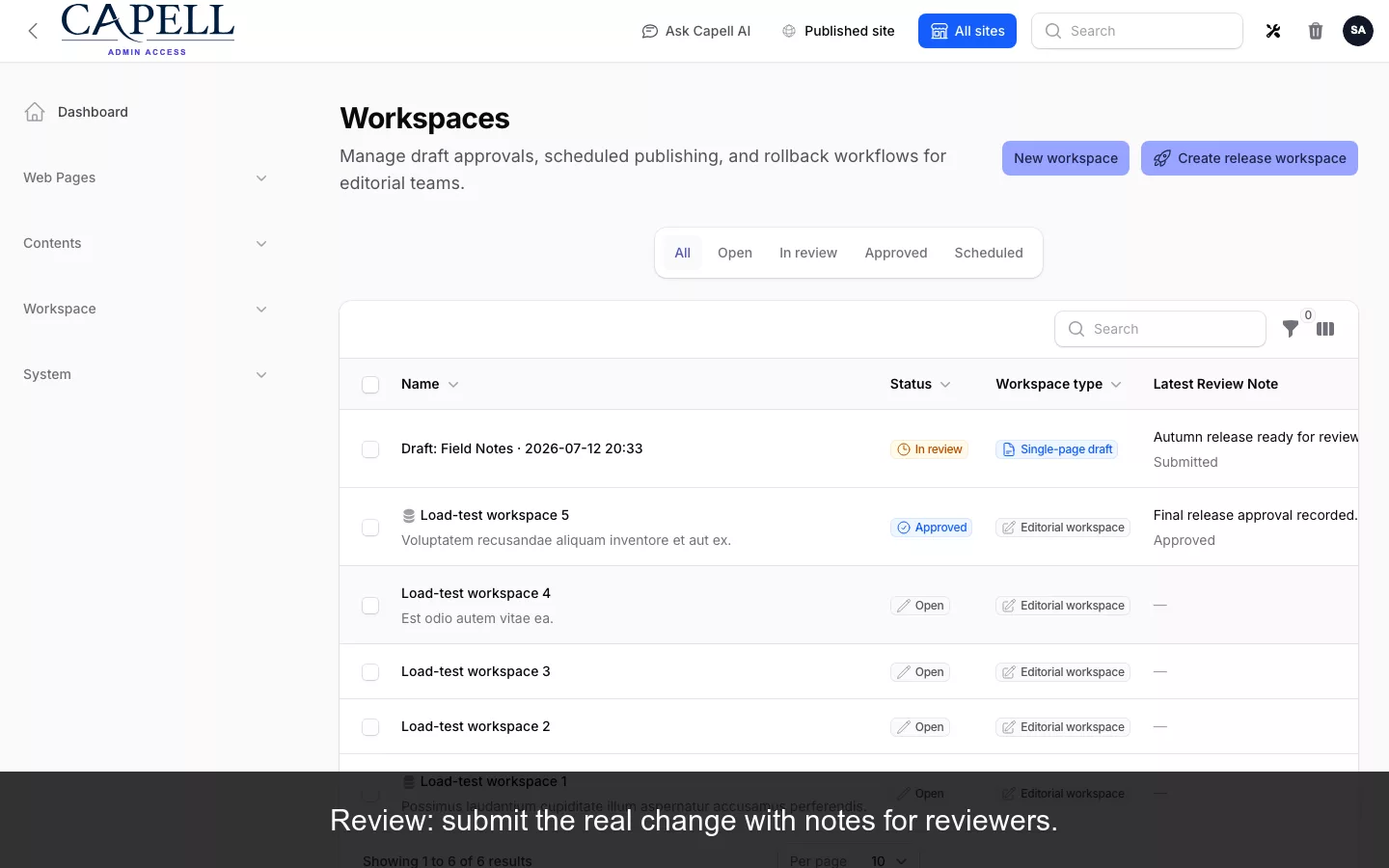
Editorial Foundation demo showing Capell's structured publishing workflow.
Structured publishing 5 extensions

Editorial Foundation

The core publishing path: structured pages, editorial blocks, layout builder, navigation, media library, and blog.

Inspect layouts, editorial blocks, media and blog working as one maintained publishing path.

Operations Readiness demo showing Capell operational capabilities.
Operational controls 8 extensions

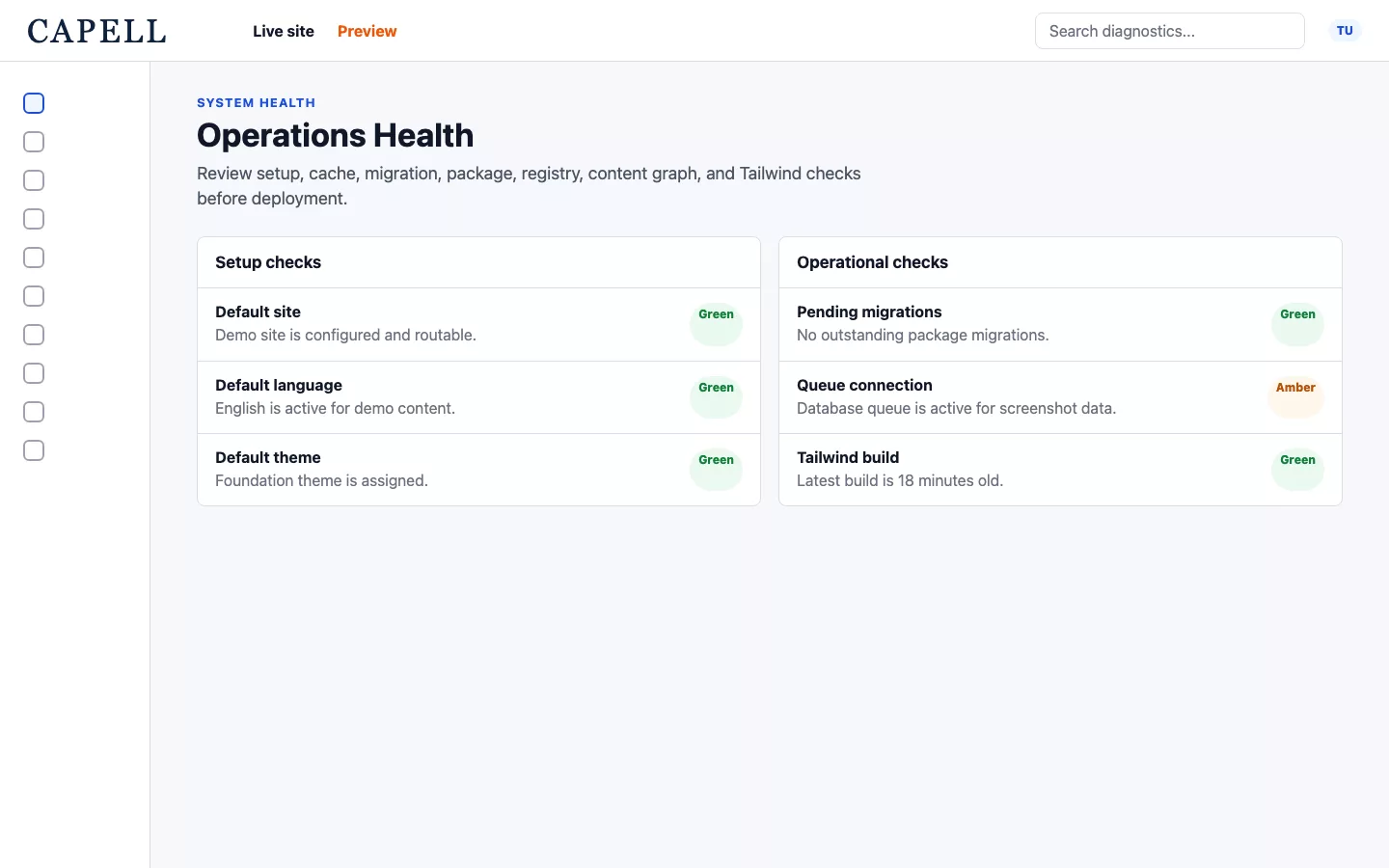
Operations Readiness

Operational packages: access control, publishing workflow, migrations, WordPress import, login review, diagnostics, page preview, and frontend authoring.

Review preview, access, migration and diagnostic capabilities around the same CMS foundation.

Next step

A local install comes next

Once the demo has answered the first questions, a local install lets you repeat the checks in your own project.

The install guide covers the foundation. The trust page lists the checks worth repeating.

Loading footer