Capell home
Install

Migrate from Voyager to Capell

Inventory tables, content, media and URLs. Use the results to decide what the importer can carry over and what your team needs to rebuild.

Inventory a restored source Preview one site on staging Verify URLs and rehearse rollback

Start with a restored Voyager database and one site. The importer reads Voyager tables through Laravel and records execution in Migration Assistant. Rehearse against a copy of the destination before you schedule a cutover.

Map Voyager content before running the importer

Use the inventory to identify fields, relationships and custom tables that need a separate implementation or review.

2 keep 3 replaced by Capell 3 to decide

  1. In Voyager Pages and posts In Capell Pages and draft articles Capell replaces

    Map the destination layout and blueprint. Enable Blog before importing posts. Pages and posts import as drafts by default.

  2. In Voyager Menus and redirects In Capell Site navigation and URL rules Capell replaces

    Enable Navigation for site menus, resolve conflicting menu keys and inspect public addresses and redirect destinations. Voyager admin menus are outside the import.

  3. In Voyager Media In Capell Destination media and file references Capell replaces

    Provide the source files on the public disk used by the import application. Check representative images and links after the dependency-ordered runs.

  4. In Voyager Translations In Capell Explicit source-to-language mapping You decide

    Create the destination languages and supply a locale mapping for every imported page or post translation, including unchanged language codes.

  5. In Voyager Users, roles and settings In Capell A separate global import You decide

    Review role mappings and setting keys. Keep the global execution separate from the site-owned entities. Destination permissions need their own review.

  6. In Voyager Custom BREAD tables and admin workflows In Capell Application models, resources and contributors You decide

    Inventory custom tables and their relationships. A generated Filament resource can use BREAD metadata for an existing model. Moving custom data needs a contributor.

  7. In Voyager Laravel application and source database In Capell Retained application logic and a restored source connection Keep

    Keep compatible application features and inspect table-name collisions before installing Capell. Rehearse through a separate, read-only connection.

  8. In Voyager Public URLs and editorial approval In Capell Checks on the destination site Keep

    Compare representative URLs, media, translations and redirects before publishing. Have an editor approve the new workflow.

Questions to resolve before cutover

Can I import live Voyager data directly?

Rehearse on staging against a restored source through a dedicated read-only connection. The same-database settings workflow is experimental and requires restricted connection profiles. Use the separate source for the standard migration.

What happens to Voyager admin screens and custom records?

Rebuild the needed admin workflows and review permissions. Inventory reports custom tables. Moving their data requires a contributor, even when BREAD metadata can help generate a Filament resource for an existing model.

How do I know the import can be repeated safely?

Review the session result and repeat the same execution against the unchanged source. Expect skipped records rather than new or updated ones. Reconcile any differences before cutover.

Inventory a restored source

Keep the Voyager application and database available while you decide what to carry forward.

  1. Restore a Voyager dump to a scratch database and configure a named read-only Laravel connection.
  2. Install Migration Assistant and Voyager Importer where available, apply the destination migrations and prepare the site, locale mapping, layouts and public files.
  3. Run php artisan voyager-importer:inventory --connection=voyager --json. Record BREAD tables, relationships, menu keys and unsupported entities. Inventory reports setting keys without their values.

Preview and execute on staging

Resolve preview errors before allowing the importer to write.

Use php artisan voyager-importer:import with the named connection, a stable source label and an explicit entity selection. Preview is the default. Check missing prerequisites, URL and menu conflicts, role mappings, unmapped fields and locales.

For a page-only staging pilot on site 1, run php artisan voyager-importer:import --connection=voyager --source-label=staging-pilot --only=pages --site-id=1 --json.

Review the plan, then run global users, roles and settings separately from site media, content, translations, menus and redirects. Supply the destination site and actor, confirm the execution and inspect the Migration Assistant session report. Re-run against the unchanged source and check for zero creates or updates.

Verify parity and practise rollback

Keep the source and destination backups available until the new site is accepted.

Before cutover, compare content and media, public URLs and redirects, locale variants, editorial permissions and the integrations that stayed in Laravel. Record who may freeze edits, approve publishing and reverse the switch.

Take a destination database dump and storage snapshot at the freeze. On staging, practise reversing the Migration Assistant sessions in reverse order. Reverse sessions before anyone edits imported content. Once edits begin, restore the freeze backup instead.

Set SESSION_ID to the import session ID or UUID and ACTOR_ID to the authorised user ID. The actor needs import-session.rollback, and reversing a global session also requires a global administrator. Record policies can also require update and delete permissions. Read the signed report, preview the reversal, then execute it only after reviewing the preview.

  1. php artisan migration-assistant:rollback-report "$SESSION_ID"
  2. php artisan migration-assistant:rollback-execute "$SESSION_ID" --actor="$ACTOR_ID" --dry-run
  3. php artisan migration-assistant:rollback-execute "$SESSION_ID" --actor="$ACTOR_ID"

Review the result and reconcile the public site before reopening editing.

What to inspect before migrating

Checks for mapping, redirects, media, integrations, cutover, recovery, and ownership.

Role-based checks drawn from product capabilities and fit boundaries.

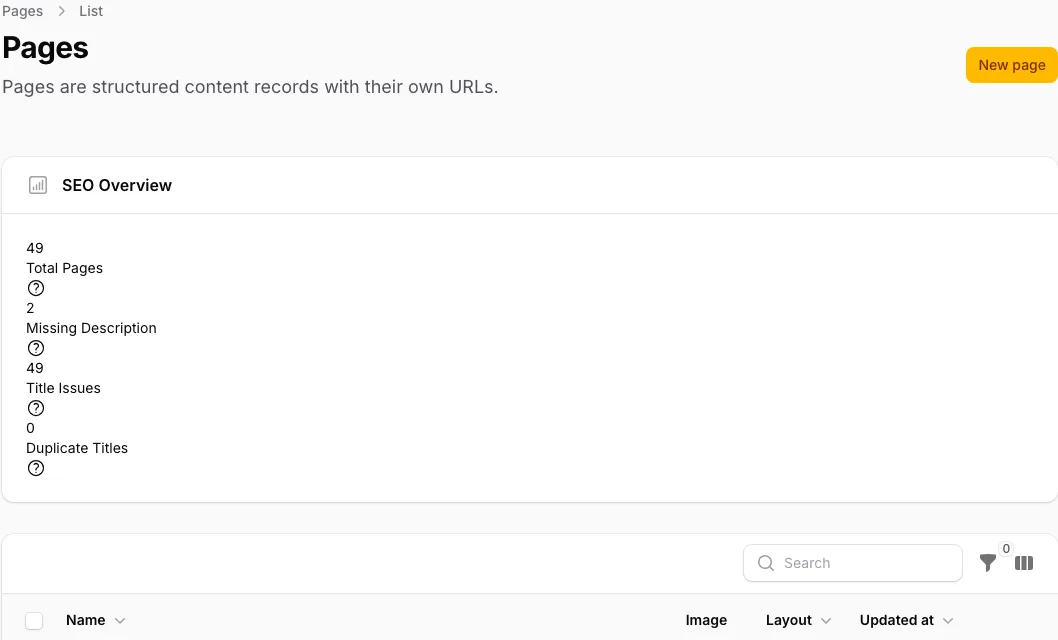
Actual Capell Pages index for the site ownership workflow described.

Check import rollback after editing a record

Dry-run an import, inspect its field map, then edit one imported record before testing rollback. The process should skip bad items, preserve redirects and refuse to erase the later edit.

Read more

Check that old permalinks redirect to their intended new destinations after import. Re-import the same source and confirm that corrections already made to migrated pages are preserved.

When to look elsewhere: A tiny, tidy source can still be faster to re-key by hand than to map. Site owners would only lean on this when there is real structure worth carrying across, and site owners would still keep a developer close.


Run this yourself in the demo

Site Owner

Evaluator scenario for a site owner

Loading footer